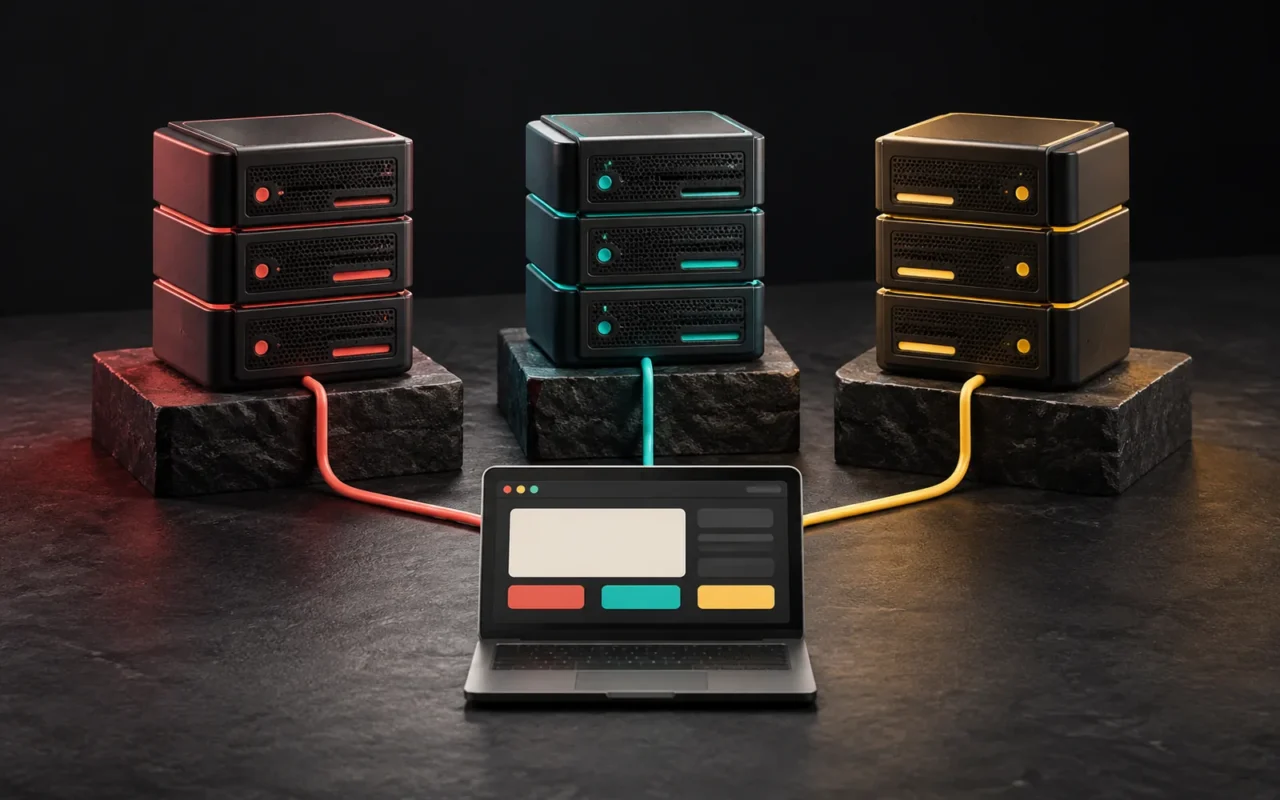
Website caching is a way of temporarily storing a prepared copy of a page or piece of data and serving that copy on the next request instead of generating everything from scratch. Set up correctly, it makes pages load faster and takes load off the server. Set up incorrectly, it can show outdated content and break forms and menus. In this article, we explain the layers of caching and what they mean for your business.
In short
- A cache keeps a ready-made copy of frequently requested content so it doesn't have to be regenerated on every request.
- A website has several cache layers: browser, CDN, page, object and code (OPcache).
- On most business websites, the page cache delivers the biggest speed gain.
- Personalized content (shopping cart, member area) shouldn't be cached.
- Aggressive optimization settings can break menus and forms. Turn each setting on only after testing it.
What is a cache?
Let's start with an everyday analogy. In a café, instead of brewing filter coffee from scratch for every customer, you keep freshly brewed coffee ready in a thermos. The customer doesn't wait, and the barista doesn't get worn out. But the coffee in the thermos has a shelf life too; after a while, it needs to be refreshed.
Websites work the same way. Every time a WordPress page is requested, the server runs PHP code, pulls content from the database, processes the theme and plugins and finally produces an HTML page. A cache stores the result of this process. The next visitor gets the ready-made copy without the same work being repeated.
Caching has two basic concepts:
- Freshness lifetime (TTL): How long the copy is considered valid.
- Invalidation (purge): Deleting the old copy when the content changes.
Most caching problems come from getting these two concepts wrong.
What cache layers does a website have?
There can be a separate cache at every layer, from the visitor's browser to the database on the server.

1. Browser cache
The visitor's browser saves files such as the logo, CSS, JavaScript and images on their own device. When the same visitor moves to another page or comes back to the website, these files aren't downloaded again.
The server tells the browser what to store and for how long with the Cache-Control header. According to MDN's HTTP caching guide, for example, max-age=604800 means the response is considered fresh for one week. When that time is up, the browser asks the server whether the file has changed (using ETag or Last-Modified). If the file hasn't changed, the server doesn't send the content again but returns a short "304 Not Modified" response.
There is a trick to long-lived browser caching: adding a version or a hash to the file name. That way, when the file changes, its name changes too, and the browser downloads the new file. For the main HTML page, short-lived caching with validation is usually preferred.
2. CDN cache
A CDN stores your website's files on servers in different parts of the world and serves them from the point closest to the visitor. MDN classifies caches like this as "shared caches" that serve more than one user. To keep personalized responses out of a shared cache, you need to use Cache-Control: private.
3. Page cache (full-page cache)
The server stores the entire HTML page it produced. Later visitors get this ready-made page without PHP or the database running at all. On WordPress websites, the biggest speed difference usually comes from here.
Page caching can be done with a plugin (for example WP Super Cache or W3 Total Cache) or directly at the server level. On LiteSpeed servers, the LSCache module does this at the server level, and the LiteSpeed Cache plugin manages it on the WordPress side. On servers that use Nginx, fastcgi_cache plays a similar role.
4. Object cache
Instead of the whole page, this stores the pieces that make up the page, namely the results of database queries. WordPress has its own object cache, but according to the developer documentation, it isn't persistent by default: the data stays in memory only for the duration of that request. To keep it between requests, you need a system such as Redis or Memcached and a plugin that connects it.
An object cache is especially useful where the page cache can't be used: logged-in users, WooCommerce cart and checkout pages, and the admin dashboard.
5. Code cache (OPcache)
On every request, PHP reads and compiles the code files. PHP's OPcache extension stores the compiled code in shared memory so this work isn't repeated on every request. This layer is usually managed by the server or the hosting provider. You can ask your provider whether it is turned on.
How does caching affect your website and your business?
- Speed and user experience: When the first byte of the page arrives sooner, the visitor sees the content sooner. This can have a positive effect on Core Web Vitals measurements.
- Server load and cost: Every request served from the cache is a request the server doesn't have to process again. The same server can handle more visitors. Setting up caching correctly is often more efficient than moving to a bigger server.
- Resilience to traffic spikes: During a rush after a campaign or a viral post, caching helps keep the website up.
- The cost of a bad setup: Showing an old price, an expired campaign or another user's cart can have far more expensive consequences than a slow page.
When does caching cause problems?
Outdated content is showing
You updated the content, but visitors still see the old version. Usually, the page cache or the CDN hasn't been purged. Good caching plugins automatically purge the relevant pages when content is updated. After changes to the theme, menus or general settings, however, you may need to purge the whole cache manually.
Personalized content is shown to everyone
If personalized areas such as the cart, a member area or a greeting like "Hello, Jane" end up in the page cache, they can be shown to other visitors too. These pages should be excluded from the cache, or the personalized parts should be loaded separately (for example with ESI or AJAX).
Forms aren't working
Some forms and plugins use a time-limited security token (a nonce). According to the WordPress documentation, a nonce has a default lifetime of one day and in practice stays valid for between 12 and 24 hours. If a page containing this token is cached for longer than the nonce's lifetime, form submissions can fail. Check whether your form plugin works well with caching, and test the form by actually submitting it.
Aggressive optimization breaks menus and forms
Caching plugins don't just cache; they also optimize pages: combining and minifying CSS and JavaScript, deferring JavaScript. These settings can raise your scores but can break how the website works. In the next section, we describe our own experience.

Our experience
On this website (artsution.com.tr), we work with WordPress, Hello Elementor and Elementor Pro. On the server side, we use LiteSpeed and the LiteSpeed Cache plugin.
LiteSpeed Cache's Guest Mode and Guest Optimization features serve first-time visitors and bots a default copy of the page with the highest level of optimization. According to the plugin's documentation, the top level of page optimization is applied in this mode. The "Delayed" JavaScript loading option in the page optimization settings also runs JavaScript only after user interaction (such as a key press or mouse movement) is detected.
In our experience, because this approach delays JavaScript until the first interaction, it can break menus and forms. When a visitor taps the menu, it may not open, or a form may not work as expected. Seeing a high score in speed tests doesn't mean a real visitor gets a smooth experience. LiteSpeed's own documentation also warns that this feature can hide real problems while producing good results in speed tests, and recommends testing the delayed mode before turning it on for a live website. That is why we keep Guest Optimization turned off on this website.
Instead, we moved forward with more controlled improvements: we combined CSS files, hosted fonts locally, used small font subsets for Turkish characters and adjusted animations that sit outside the visible screen. With these steps, we improved the mobile PageSpeed result without compromising how menus and forms work. After every change, we purge the cache and test the website in a private window, just like a real visitor.
Common mistakes
- Turning on all optimization options at once: When something breaks, it becomes hard to find which setting caused it. Turn settings on one at a time and test after each one.
- Looking only at the speed test score: Open the menu, submit the form, add a product to the cart. What matters is that things work, not the score.
- Using more than one caching plugin together: If two page caches run at the same time, conflicts and unpredictable results can follow.
- Not excluding personalized pages from the cache: Check the exceptions for the cart, checkout and account pages.
- Forgetting to purge the cache after an update: Especially after theme and menu changes.
Frequently asked questions
Will purging the cache break my website?
No. A cache only holds copies. When it is purged, pages are regenerated for the first visitors; this makes a few requests a bit slower, and then the cache fills up again. Your actual content is safe in the database and the files.
Why are visitors seeing an old version of my website?
The most common reason is that the page cache or the CDN wasn't purged after an update. Less often, the visitor's browser is holding an old CSS or JavaScript file in its cache. Adding versions to file names largely prevents this problem.
Does every WordPress website need Redis or Memcached?
No. On business websites where most visitors are served cached pages, a page cache is usually enough. An object cache makes more sense for dynamic websites with many logged-in users, such as WooCommerce stores, or for admin dashboards that run slowly.
Should I turn on my caching plugin's optimization settings?
You can, but one at a time and with testing. Settings such as combining and deferring CSS and JavaScript give different results depending on the website's theme and plugins. If a setting breaks something, turn it off or add the relevant file to the exclusion list.
Conclusion
Caching is the most effective and often the cheapest way to speed up a website. But it isn't a single switch; it is made up of layers that work together: browser, CDN, page, object and code caching. A correct setup requires knowing what is stored, for how long and for whom, and testing every setting in real use.
If you would like to review your website's speed and cache settings together, take a look at our WordPress development and web design services or get in touch with us.
Learn more on Grafik Sanat (in Turkish): Visual explanations and quizzes on this topic → grafiksanat.com.tr/terim/onbellek
Sources10
- MDN Web Docs — HTTP caching. developer.mozilla.org
- IETF — RFC 9111, HTTP Caching (June 2022). rfc-editor.org
- WordPress Developer Resources — WP_Object_Cache. developer.wordpress.org
- WordPress Developer Resources — Nginx (fastcgi_cache and caching plugins). developer.wordpress.org
- WordPress Developer Resources — Nonces. developer.wordpress.org
- PHP Manual — OPcache. php.net
- LiteSpeed Docs — LSCache for WordPress, General (Guest Mode, Guest Optimization). docs.litespeedtech.com
- LiteSpeed Docs — LSCache for WordPress, Page Optimization (Load JS Deferred: Delayed). docs.litespeedtech.com
- LiteSpeed Docs — LSCache for WordPress, Cache (Object Cache, Browser Cache). docs.litespeedtech.com
- Grafik Sanat — Önbellek (Cache) [term page, in Turkish]. grafiksanat.com.tr