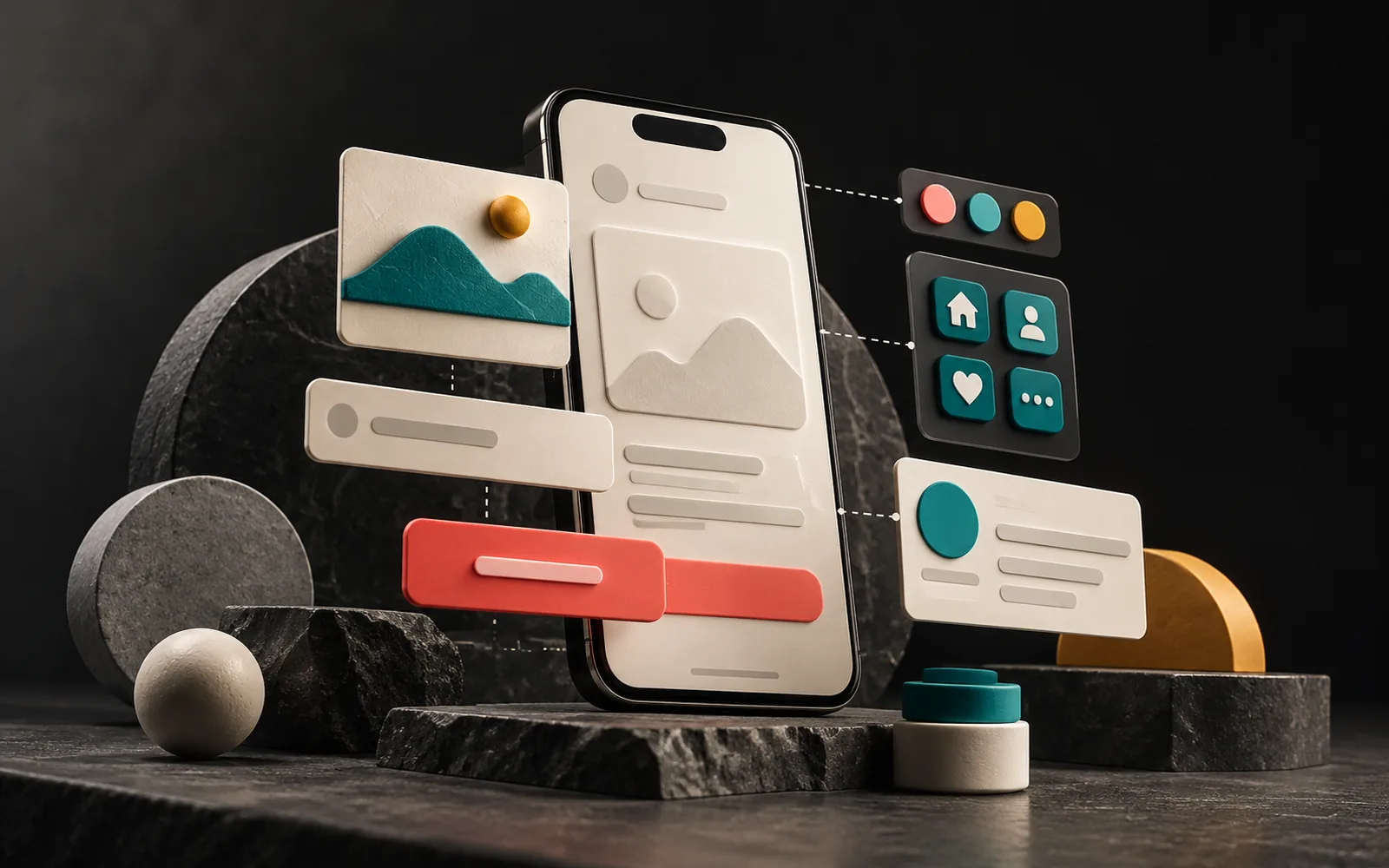
A user interface (UI) is everything people see and touch on your website or app: buttons, menus, form fields, colors, typefaces, icons and the way you lay all of these out on the page. UI design is the work of shaping that layer. The difference between UI and UX, in short: UX is the whole experience a user has from start to finish; UI is the visible face of that experience on the screen. A good interface shows users where to look and what to do without having to tell them.
In short
- UI is made up of visual and interactive elements such as buttons, menus, forms, color, typography, icons and spacing.
- UX is the whole experience and UI is the part of it on the screen; the two are designed together.
- Good UI rests on visual hierarchy, consistency, readability and clear feedback.
- For things like contrast and touch target size, the W3C's WCAG guidelines give measurable criteria.
- Your interface is your corporate identity on screen.
What is a user interface?
The interface is the contact surface between a person and a digital product. On a website, that surface consists of:
- Interactive elements: Buttons, links, menus, tabs, drop-down lists, form fields.
- Visual elements: Color palette, typefaces, icons, photos and illustrations.
- Layout: Where elements sit on the grid, the spacing between them, alignment.
- States and feedback: How a button looks when you hover over it, click it or when it is disabled; error and success messages.
Teams often forget the last item. However, you should design a button not just in its resting state but in every state. When users click something, they should see that something happened.
UI vs. UX
In our post on user experience (UX) we used a store analogy: the aisle layout, the signs and the wait at the checkout shape the experience (UX). The shop window, the shelves and the typeface and colors of the signs are the interface (UI).
| UX (user experience) | UI (user interface) | |
|---|---|---|
| Core question | "Can users reach their goal easily?" | "How should this look and behave on screen?" |
| Scope | Product, content, flow, speed, support; every touchpoint | Visual and interactive elements on the screen |
| Typical outputs | Research notes, sitemap, wireframes, prototype, test results | Color and type system, components, screen designs |
| Example of a mistake | The quote form is on the wrong page and too long | The submit button blends into the text; contrast is too low |
| Measure of success | Task completion, conversion | Readability, clarity, consistency |
Although people discuss them as separate specialties, in practice they are intertwined. For example, an unreadable interface ruins a perfect flow, and a flawless interface cannot rescue a badly planned flow.
Core principles of good UI design
Visual hierarchy
When users look at a page, their eyes should go to the most important element first. Size, color, weight and position decide this. As a result, if everything on a page is bold and colorful, nothing stands out. A practical rule: give each screen one main action (the primary button) and keep the others quieter.
Consistency
Elements that do the same job should look the same and sit in the same place everywhere. One of Jakob Nielsen's usability heuristics is "consistency and standards": users should not have to wonder whether different words, situations or actions mean the same thing. To stay consistent, it helps to design interface elements not one by one but as a component system (buttons, cards, form fields and so on).
Readability and contrast
Text should stand out clearly from its background. The W3C's WCAG guidelines give a measurable threshold: a contrast ratio of at least 4.5:1 for normal text and at least 3:1 for large text. For example, light gray text on a light gray background may look elegant, but you can't read it on a phone outdoors in the sun.
Touch targets
On mobile, a finger is not as precise as a mouse pointer. WCAG 2.2 (October 2023) defines a minimum size of 24×24 CSS pixels for touch and click targets (with some exceptions) as a Level AA criterion. Therefore, small links packed close together lead to mistaps and frustration.
Whitespace
Whitespace is not unused space; it is a design element. In fact, leaving enough space between elements groups related items and makes the page easier to scan.
Feedback
Every action should have a visible result: a button should change state when clicked, a confirmation message should appear when a form is sent, and when something goes wrong, the message should say what is wrong and how to fix it.
The business impact: your interface is your brand on screen
The interface is how your corporate identity is applied in the digital world. In other words, your color palette, typefaces and visual language come to life in the interface. There are two risks here:
- An interface disconnected from the identity: A site left in the colors of an off-the-shelf theme has no link to your printed materials.
- An interface that forces the identity onto the screen: A color or a thin typeface that looks great in print can cause readability problems on screen. A good UI designer adapts the identity for the screen without breaking it, for example by using a darker shade of the brand color for text.
From a business point of view, a good interface gives you:
- Trust: A tidy, consistent interface signals professionalism.
- Speed: Users find what to click without having to think.
- Fewer errors: Clear labels and feedback reduce incorrectly filled forms.
- Easy growth: Adding a new page to an interface designed as a component system is faster than designing from scratch every time.
Common UI mistakes
- Emphasizing everything: Several bright buttons and bold text everywhere; in the end, nothing stands out.
- Using color alone to convey information: Phrases like "Fields in red are required" don't work for users who perceive color differently; use an icon or text alongside color.
- Too many typefaces: Two type families are enough for most sites; more looks messy and can slow the page down.
- Making links indistinguishable from plain text: Users need to understand what is clickable.
- Designing only for desktop: The interface must be checked separately on mobile; menus, tables and forms behave differently on small screens.
- Not designing states: When empty list, loading, error and success states are forgotten, users don't understand what is happening.
Our experience
Because of our background in graphic design and illustration, we start interface design from the identity: we adapt the brand's colors, typefaces and visual language for the screen and run contrast and readability checks during the design phase. We prefer to design the interface not page by page but as reusable components such as buttons, cards and forms; this makes it easier for the site or app to grow later. Finally, we check every design on different phone sizes as well as on desktop.
Frequently asked questions
What is the difference between a UI designer and a graphic designer?
Both use visual design skills. Graphic design focuses more on static communication materials (logos, posters, packaging, catalogs). UI design deals with interactive screens: button states, adapting to screen sizes, responses to user actions. That said, many designers work in both fields.
If I use a ready-made theme, do I still need UI design?
A ready-made theme gives you a starting point, but it needs to be adapted to your brand: colors, typefaces, button styles and visual language. An unadapted theme looks like every other site using the same theme and has no link to your corporate identity.
How can I tell whether an interface is good?
Give someone who has never seen your site a simple task ("Find the contact form and fill it in") and watch. If they pause to think about what to click, click the wrong element or lean in to read the text, the interface has something to improve. In addition, you can measure contrast ratios with online contrast checkers.
Should a mobile app and a website have the same interface?
They should carry the same identity, but they don't have to be identical. Mobile apps follow the familiar patterns of their operating systems (such as a bottom menu or the back gesture), and users are used to them. Color, typography and icon language can stay shared while the navigation structure is adapted to the platform.
Conclusion
The user interface is the visible, touchable face of your site or app. UX plans the experience as a whole; UI brings that plan to the screen with a clear hierarchy, consistent components, readable text and understandable feedback. When you design the two together, you get a product that is both good-looking and useful. If you are planning a new site, you may also want to read our guide on what to check before commissioning a corporate website.
If you'd like to talk about interface design for your website or app, take a look at our web design and mobile app development services, or get in touch.
Learn more on Grafik Sanat (in Turkish): Visual explanations and quizzes on this topic → grafiksanat.com.tr/terim/ui
Sources5
- Nielsen Norman Group — The Definition of User Experience (UX) nngroup.com
- Nielsen Norman Group — 10 Usability Heuristics for User Interface Design nngroup.com
- W3C WAI — Understanding SC 1.4.3 Contrast (Minimum) w3.org
- W3C WAI — Understanding SC 2.5.8 Target Size (Minimum) w3.org
- W3C WAI — What's New in WCAG 2.2 w3.org