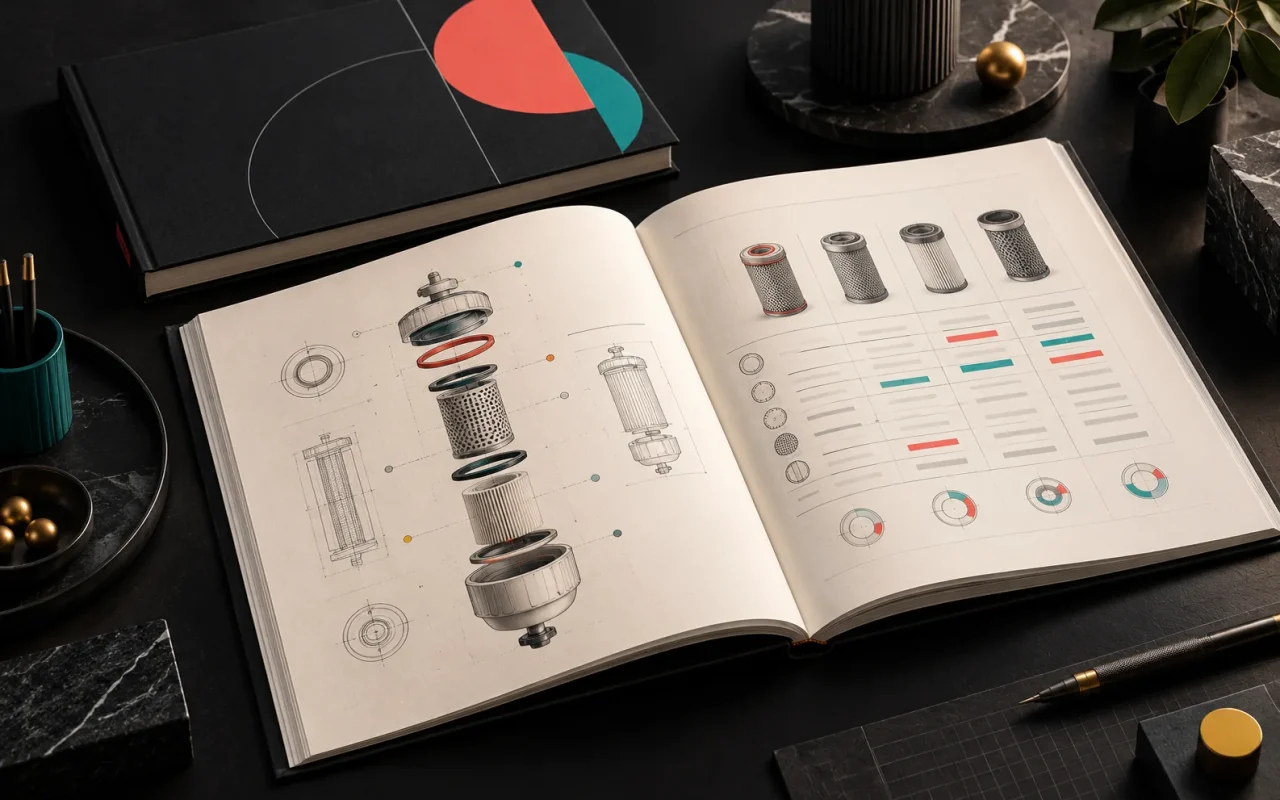
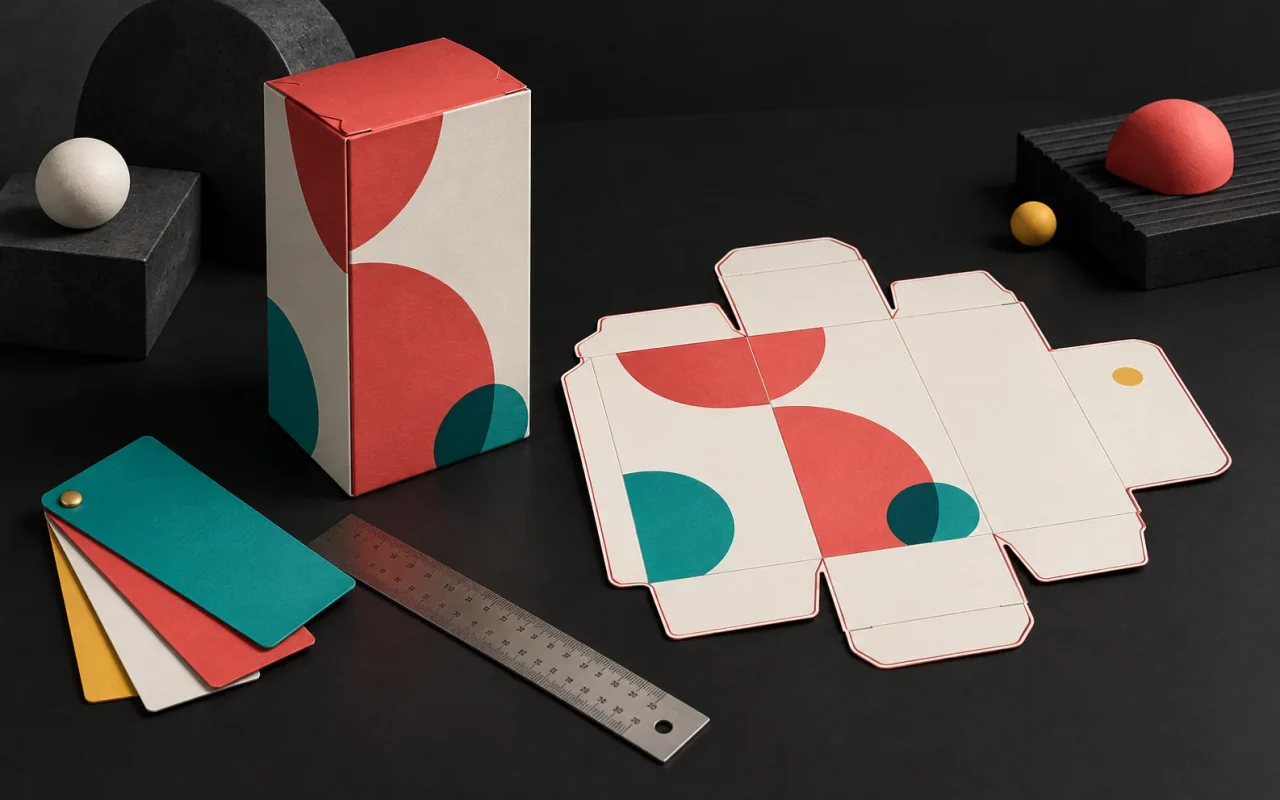
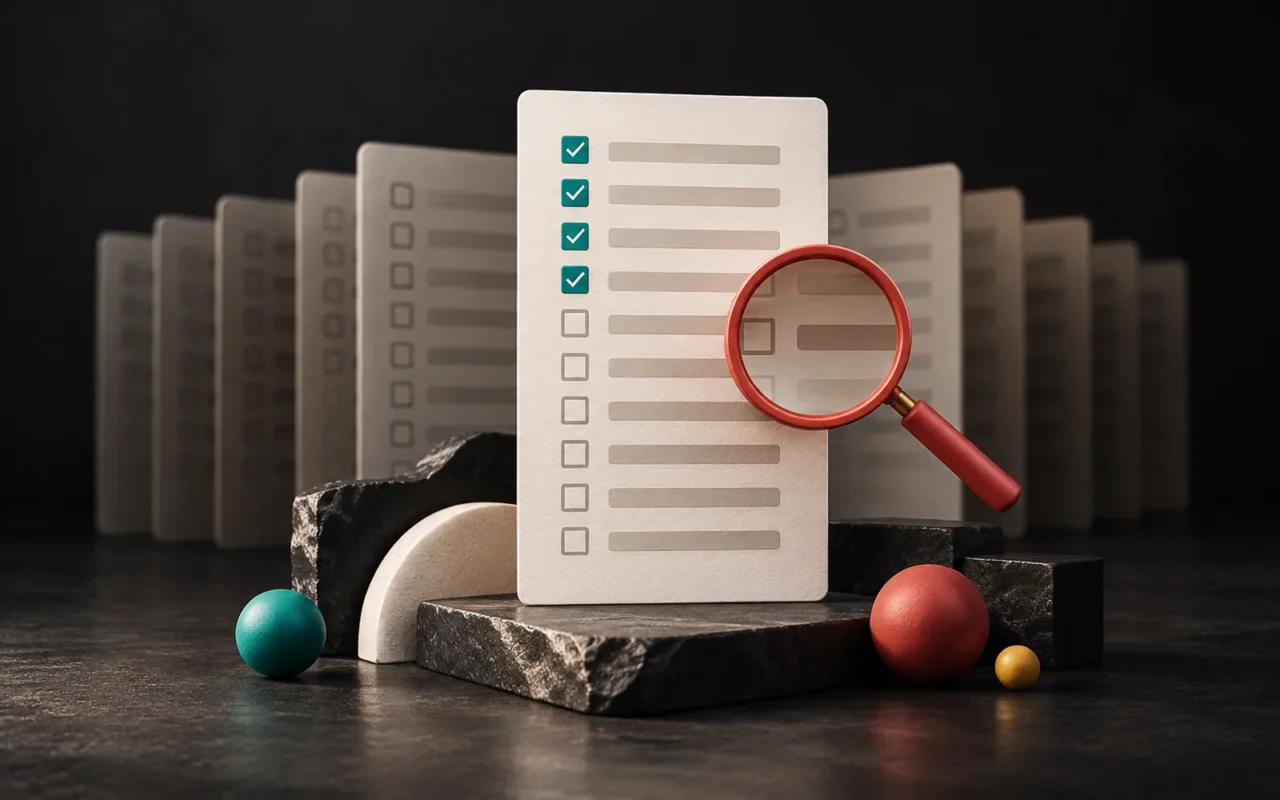
A print-ready file is a file the printer can send straight to press without making any corrections. In practice, that means a file at the correct size, with bleed left around the edges, colors set as CMYK (or a defined spot color), images at sufficient resolution for their printed size, fonts embedded, and usually saved in the PDF standard the printer asks for. If any of these is missing, the result comes back as a white edge, cut-off text, dull colors or blurry images.
In short
- A print-ready file is one the printer can print without fixing anything; you usually deliver it as a PDF.
- Screens work in RGB, print works in CMYK; some vivid colors you see on screen may not print the same.
- Background colors and images extend beyond the trim line; a common bleed is about 3 mm.
- Photos should be about 300 ppi at their printed size; logos and text should stay vector.
- The right settings are always the ones in your printer's technical specifications; ask for them before you start.
Why does a print-ready file matter?
A design that looks flawless on screen behaves differently once it moves to paper. For one thing, a screen emits light, while paper reflects it. In addition, the cutting blade can drift by a millimeter, and paper absorbs ink. A print-ready file is one that accounts for these physical differences from the start.
If the file isn't ready, one of two things happens: either the printer sends it back and the job slips, or the printer prints it as is and the problem only shows up when the product is in your hands. The second is an expensive mistake, especially for high-volume packaging and catalog jobs.
CMYK and RGB: why do colors come out differently?
- RGB (red, green, blue): The model screens use. Screens create color by adding light (additive color).
- CMYK (cyan, magenta, yellow, black): The model used in print. Inks create color by absorbing part of the light reflected from white paper (subtractive color).
The two models have different color ranges (gamuts): some colors you see on screen may not be reproducible exactly in print. For example, bright blues, neon greens and vivid oranges are the most common cases. That's why:
- Set up a print job in CMYK from the start, or do the conversion in a controlled way. Otherwise, converting an RGB file automatically at the last minute can cause unexpected color shifts.
- If CMYK cannot match your brand's main color exactly, you can use a spot color. A spot color prints with a single, premixed ink; color systems such as Pantone serve this purpose. As a result, the color stays more consistent across print runs and suppliers.
- For a deep, solid black in large text and backgrounds, you can use rich black (black over CMY); for small text, however, black alone (K) works better. Ask your printer which values to use.
Bleed and safe area
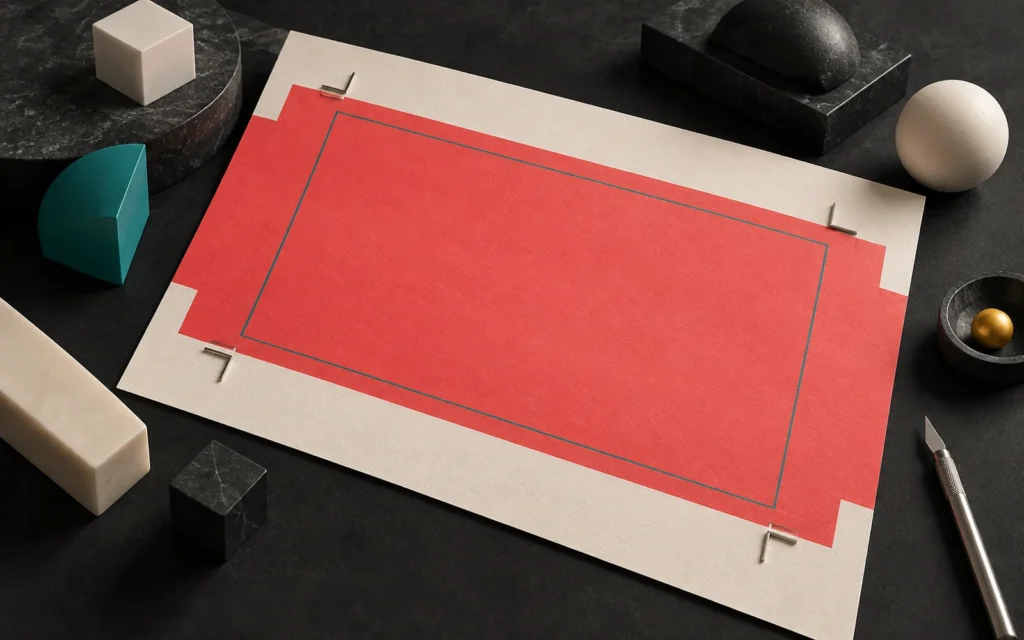
A cutting machine can't cut the paper in exactly the same place every time; small shifts happen. So if a background color or photo ends exactly at the trim line, that shift leaves a thin white strip along the edge.
Bleed means extending backgrounds and images beyond the trim line. A common value is about 3 mm (1/8 inch in imperial units). However, large-format jobs and some special die cuts may need more.
Example: An A5 flyer is 148 × 210 mm. When you add 3 mm of bleed on each side, you set up the file at 154 × 216 mm.
The safe area is the opposite: you keep text, logos and important information inside the trim line, a certain distance from the edge, usually at least 3–5 mm in from the cut. That way, if the cut shifts, the blade won't clip the last digit of your phone number.
Resolution: how large should images be?
Raster images such as photos consist of pixels and get blurry as you enlarge them. Therefore, the common recommendation for print is an image of about 300 ppi (pixels per inch) at its actual printed size.
A simple formula for doing the math yourself:
Print width (mm) ≈ pixel width ÷ 300 × 25.4
For example, an image 1,000 pixels wide can print about 85 mm wide at 300 ppi. If you try to stretch the same image to the width of an A4 page (210 mm), the resolution drops and the image looks soft.
Two important caveats:
- Changing an image's resolution setting in software "from 72 to 300" doesn't add any new detail. If the number of pixels stays the same, so does the quality.
- Images you download from a website are usually sized down for screens, so they are rarely good enough for print.
Logos, text and illustrations, on the other hand, should stay vector wherever possible. Vector elements are resolution-independent and print sharply at any size.
Fonts: embedded or converted to outlines
If the printer's computer doesn't have the font you used, it may swap your text to another font when it opens the file, and the lines will shift. There are two ways to prevent this:
- Embed the fonts in the PDF,
- or convert the text to outlines.
However, you can no longer edit text once you convert it to outlines, so don't forget to keep the editable master file separately.
PDF/X: why do printers ask for this format?
PDF/X is a subset of the PDF standard for exchanging files in print production (ISO 15930). It restricts elements that may appear in an ordinary PDF but cause problems in print, and it requires the file to contain the information needed for printing. The two versions you'll see most often:
- PDF/X-1a: Requires embedded fonts and all images in CMYK or spot color.
- PDF/X-4: Supports color management (ICC profiles) and transparency; preferred in newer workflows.
In short, use whichever version and color profile your printer asks for. Also, most design programs offer ready-made export presets for these standards.
Checklist before sending to the printer
| Check | What it should be |
|---|---|
| Size | Final (trimmed) size is correct; page count and order are correct |
| Bleed | Backgrounds and images extend beyond the trim (usually 3 mm) |
| Safe area | Text and logos sit far enough in from the edge |
| Color | CMYK or a defined spot color; no unwanted RGB elements |
| Resolution | Photos about 300 ppi at printed size |
| Vector elements | Logos, icons and illustrations are vector |
| Fonts | Embedded or converted to outlines |
| Black | Small text in black only (K); large backgrounds in the black the printer recommends |
| Special finishes | Finishes such as varnish, foil, embossing and die lines marked on a separate layer or with a spot color |
| Format | The PDF standard the printer asks for (e.g. PDF/X-1a or PDF/X-4) |
| Proof | A color proof or sample print requested for important jobs |
Common mistakes
- Using a screenshot or a web image for print. The resolution is usually not enough.
- A background that runs to the edge without bleed. Risk of a white strip after trimming.
- Text too close to the edge. The blade can clip it, or it can look cramped.
- A large print run in your corporate color without a color proof. The corporate color may come out differently than on screen.
- Sending a Word or presentation file at the last minute. Nobody built these programs for prepress, so their color and bleed settings are limited.
- Not asking for the printer's specifications. Every printer has different equipment and preferences.
Packaging jobs add die lines, fold allowances and glue areas to this list. We covered those details in our article on the prepress process in packaging design. For multi-page jobs, our article on catalog design for technical products may also help.
Our experience
For packaging, catalogs and other print work, we start preparing the file at the beginning of the design, not at the end: before we begin, we ask the printer for its technical specifications for size, bleed, color profile and PDF format, and we set up the document with those settings. We keep logos and illustrations vector and check the resolution of photos at their printed size. Before delivery, we go through the checklist above on the file item by item, and for important jobs we recommend asking for a proof.
Frequently asked questions
Is a file I made in Canva or a similar tool suitable for print?
It can be, but you need to check. When exporting, choose the print PDF option and turn on bleed and crop marks; make sure your images have enough resolution at their printed size. For color mode and PDF standard, check your printer's specifications.
Is bleed always 3 mm?
For small-format jobs such as business cards, flyers and brochures, 3 mm is a common value. For posters, banners and packaging with custom die cuts, the printer may ask for more. Ask your printer for the exact value.
What happens if I send my file in RGB?
The printer will convert it to CMYK. During that conversion, vivid blues, greens and oranges in particular can turn dull. When color matters, it's safer to do the conversion yourself while checking it on screen, or to ask your designer to do it.
The printer says my file "isn't packaged" or "isn't flattened." What does that mean?
It usually means the fonts aren't embedded or converted to outlines, or the file is missing its linked images. Exporting to a standard such as PDF/X prevents most of these problems.
Conclusion
A print-ready file brings together the right size, bleed, a safe area, CMYK or spot color, sufficient resolution, a vector logo, embedded fonts and the PDF standard your printer asks for. These details look small; however, the cost and quality of a print job often depend on them. The most important step is a simple one: ask for your printer's technical specifications before you start.
If you'd like help with print-ready files for your packaging, catalog or brochure work, take a look at our packaging and print design and catalog and brochure design services, or get in touch with us.
Learn more on Grafik Sanat (in Turkish): Visual explanations and quizzes on this topic → grafiksanat.com.tr/terim/vektor-raster
Sources6
- Wikipedia — CMYK color model en.wikipedia.org
- Wikipedia — Spot color en.wikipedia.org
- Wikipedia — Bleed (printing)) en.wikipedia.org
- Wikipedia — PDF/X en.wikipedia.org
- CopyPrint — How to Prepare Print-Ready Files (bleed, safe area, 300 DPI, A5 example) copyprint.ie
- Adobe — Raster vs. vector adobe.com