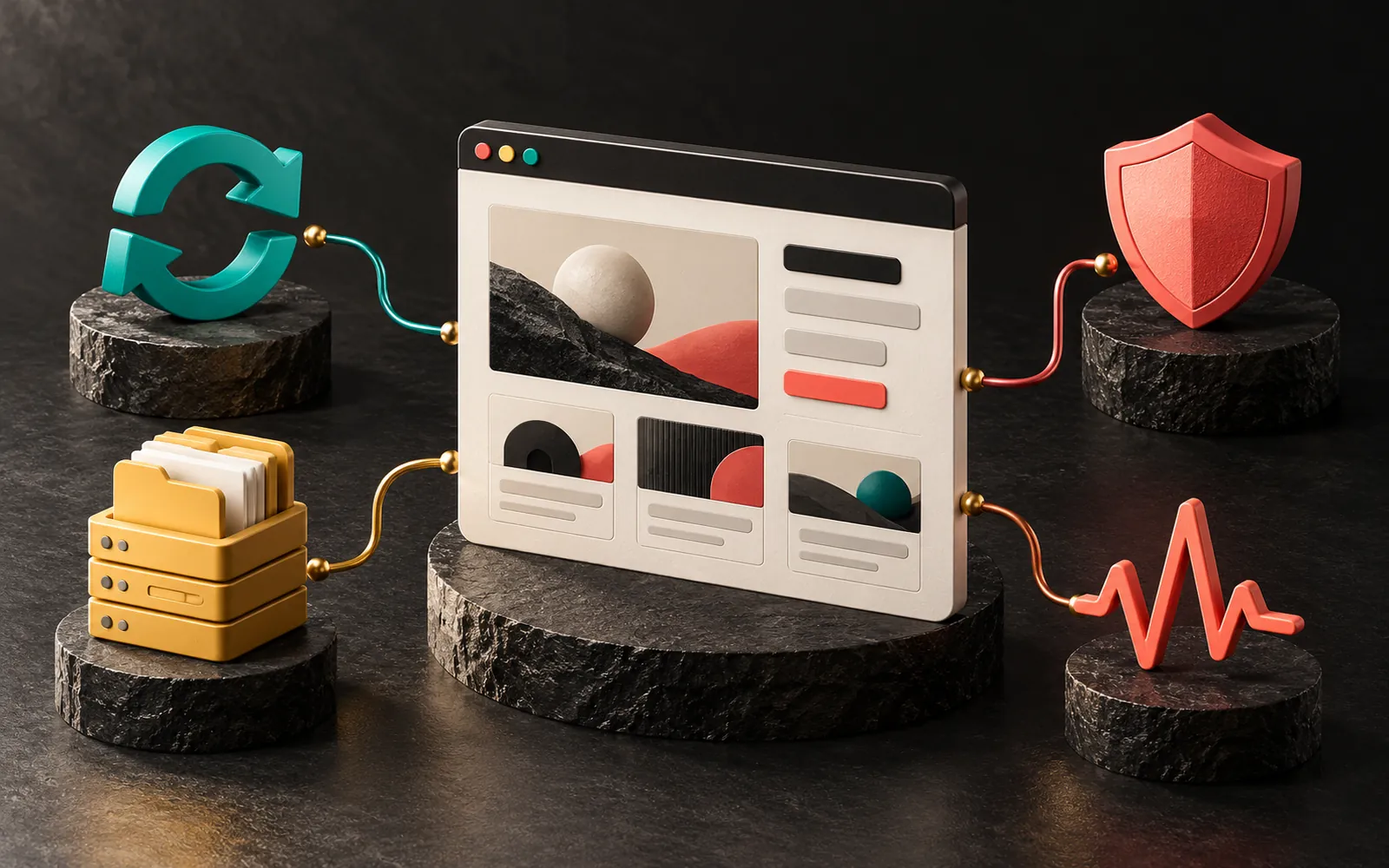
Website maintenance means keeping the software up to date, running security checks, taking regular backups and monitoring that the site keeps working. It is necessary because a website doesn't freeze the day it goes live: the software it uses is constantly updated, new security vulnerabilities are found and the server environment changes. A site that isn't maintained may one day stop working, or be taken over without anyone noticing.
In short
- Maintenance has four parts: updates, security, backups and monitoring.
- The vast majority of security vulnerabilities in the WordPress ecosystem are in plugins, not in the core.
- A backup is only truly a backup if you have tested that it can be restored.
- The PHP version on the server is also part of maintenance; versions that have reached end of support no longer get security updates.
- Taking a backup before updating and checking the site afterward is the most important maintenance habit.
Why does a website need maintenance?
A WordPress site isn't a single piece of software but a combination of several layers: the WordPress core, the theme, plugins, the PHP version on the server, the database and the SSL certificate. Each of these layers is updated on its own schedule. When one falls behind, incompatibilities and security risks begin.
Common problems on unmaintained sites:
- Security vulnerabilities: A known vulnerability in a plugin that hasn't been updated can lead to the site being taken over, unwanted redirects or spam content being injected.
- Incompatibility: When the hosting provider upgrades the PHP version, a theme or plugin that hasn't been updated in years may stop working.
- Broken forms: The contact form, email settings or an integration silently breaks. Customer inquiries stop arriving for weeks and nobody notices.
- Slowdowns: Accumulated old revisions, a bloated database and unused plugins slow the site down.
- Certificate and domain problems: An expired SSL certificate or an unrenewed domain name can make the site unreachable overnight.
Where do most security vulnerabilities come from?
According to the 2025 report by the security company Patchstack, 7,966 new security vulnerabilities were reported in the WordPress ecosystem in 2024. About 96% of them were found in plugins and 4% in themes. Only 7 vulnerabilities were identified in the WordPress core.

These figures say two things:
- It isn't WordPress itself but every plugin and theme added to the site that is a point of risk. Limiting plugins to the ones you actually need is the first step of maintenance.
- Most vulnerabilities are closed by an update the developer releases. A site that doesn't install the update keeps living with a known vulnerability that anyone can read about.
WordPress's official security guide points to the same thing: getting plugins and themes only from trusted sources, keeping software up to date and taking regular backups are the basic precautions.
What does website maintenance cover?
1. Updates
- WordPress core: Since WordPress 3.7, minor maintenance and security releases (for example, from 6.8.0 to 6.8.1) are installed automatically by default. Major releases (for example, from 6.7 to 6.8) are usually done manually or with a deliberate setting.
- Plugins and themes: Since WordPress 5.5, automatic updates for plugins and themes can be turned on or off one by one from the admin dashboard. Turning on automatic updates for every plugin isn't always the right call. It is safer to update plugins that directly affect how the site works, such as page builders, e-commerce or caching plugins, in a controlled way.
- Paid plugin licenses: Paid plugins such as Elementor Pro may stop receiving updates when the license expires. License renewal dates should be part of the maintenance calendar. We covered the Elementor side in our post on building a corporate website with Elementor.
2. Server and PHP version
WordPress runs on PHP, and every PHP version has a support period. For example, security support for PHP 8.1 ends on 31 December 2025. After that date, no security patches are released for that version. Before upgrading the PHP version, you need to test that your theme and plugins are compatible with the new version. We discussed who is responsible for this on the server side in our hosting post.
3. Backups
A backup is the only reliable way to bring the site back when something goes wrong. A good backup routine answers these questions:
- What is backed up? Both the files (theme, plugins, uploaded images) and the database (posts, pages, settings, orders).
- Where is it stored? A backup kept only on the server where the site lives is lost along with the site when the server fails. A copy of the backup should be kept somewhere else. WordPress's own documentation also recommends keeping multiple backups in different locations and on different media.
- How often? For a site whose content changes often or that takes orders, a daily backup is usually enough; for a rarely updated brochure site, a weekly one usually is.
- Can it be restored? You only find out whether a never-tested backup works when you need it. Every so often, you should try restoring it to a test environment.
4. Security checks
- Reviewing administrator accounts and removing users who are no longer needed.
- Strong passwords and, where possible, two-factor authentication.
- Fully deleting unused plugins and themes, not just deactivating them.
- Disabling file editing from the admin dashboard.
- Checking that the SSL certificate and the HTTPS redirect are working.
5. Monitoring and performance
- Regularly checking that the site is reachable.
- Testing that contact forms actually send email. For form emails not to land in spam, the domain's email settings also need to be correct. We explained this in our post on SPF, DKIM and DMARC.
- Checking Core Web Vitals values and errors in Search Console from time to time.
- Database cleanup (old revisions, trash, temporary data).
A sample maintenance plan
The plan below is a starting point for a mid-sized corporate WordPress site. Frequencies vary depending on the site's structure and traffic.
| Frequency | Tasks |
|---|---|
| Daily (automatic) | Backup (if there are orders or frequent content changes), uptime monitoring, minor WordPress security updates |
| Weekly | Controlled plugin and theme updates, form testing, reviewing security alerts |
| Monthly | Checking that the backup is copied to a separate location, performance measurement, Search Console errors, user accounts |
| Quarterly | Test restore from backup, cleanup of unused plugins, PHP and server version check, license renewal dates |
| Yearly | Domain name and SSL renewal check, review of content and contact details |
The order to follow when updating
- Take a full backup (files and database).
- If possible, try the update on a test (staging) copy first.
- Update items one at a time. If a problem appears, you'll know which one caused it.
- Clear the cache.
- Check the home page, menus, forms and mobile view.
- If something is wrong, roll back from the backup and investigate the compatibility issue separately.
Our experience
Our own site, artsution.com.tr, runs on WordPress, Hello Elementor, Elementor Pro, a LiteSpeed server and LiteSpeed Cache. What we've learned with this setup has shaped our maintenance habits.
We move sites from the local development environment to the live server with All-in-One WP Migration. Because this method packs a full copy of the site into a single file, it helps us both with migrations and with creating a safe restore point before updates.
We also treat cache settings as part of maintenance. We found that the "guest optimization" feature in LiteSpeed Cache can delay JavaScript until the first interaction and break menus and forms, so we keep it turned off. That is also why we test menus and forms by hand after a plugin update or a settings change: some problems don't show up in automated tests, only when you click around like a real user.
Frequently asked questions
If a site isn't maintained, will it break right away?
Usually not right away. The problem is that neglect builds up silently. A vulnerability is found in a plugin and isn't patched; the server upgrades its PHP version and the old theme starts throwing errors; form emails go to spam and nobody notices. Maintenance lets you catch these problems before your customers do.
Is it enough to turn on all automatic updates?
Partly. Having WordPress's minor security releases installed automatically is a good default. However, unattended updates to critical components such as page builder, e-commerce or caching plugins can cause an incompatibility that breaks the site. For these plugins, it is safer to take a backup and update in a controlled way.
Is the backup my hosting company takes enough?
On its own, it may not be. Find out how often the hosting backup is taken, how many days it is kept and whether you can restore it yourself. A copy of the backup should also be kept off the server, somewhere you can access.
Can I maintain my website myself?
On a small, simple site, you can do the basic updates yourself. What matters is taking a backup before updating and checking the site afterward. If there are many plugins, e-commerce, custom development or a multilingual setup, working with a team that can step in quickly when something goes wrong is less risky.
Conclusion
Website maintenance is regular work that keeps a site secure, fast and working. When updates, security, backups and monitoring are considered together, most problems are prevented before they appear. Maintenance may look like a cost item, but the cost of rescuing a broken site or losing customer inquiries is usually much higher.
If you'd like to put your WordPress site's maintenance on a regular plan, take a look at our WordPress development service or get in touch with us.
Sources7
- Patchstack — State of WordPress Security in 2025 (updated: 14 March 2025) patchstack.com
- WordPress Developer Resources — Hardening WordPress developer.wordpress.org
- WordPress Developer Resources — WordPress Backups developer.wordpress.org
- WordPress.org News — WordPress 3.7 "Basie" (automatic background updates for maintenance and security releases) wordpress.org
- WordPress.org News — WordPress 5.5 "Eckstine" (automatic updates for plugins and themes) wordpress.org
- PHP.net — Supported Versions php.net
- PHP.net — Unsupported Branches (PHP 8.1 end of support: 31 December 2025) php.net