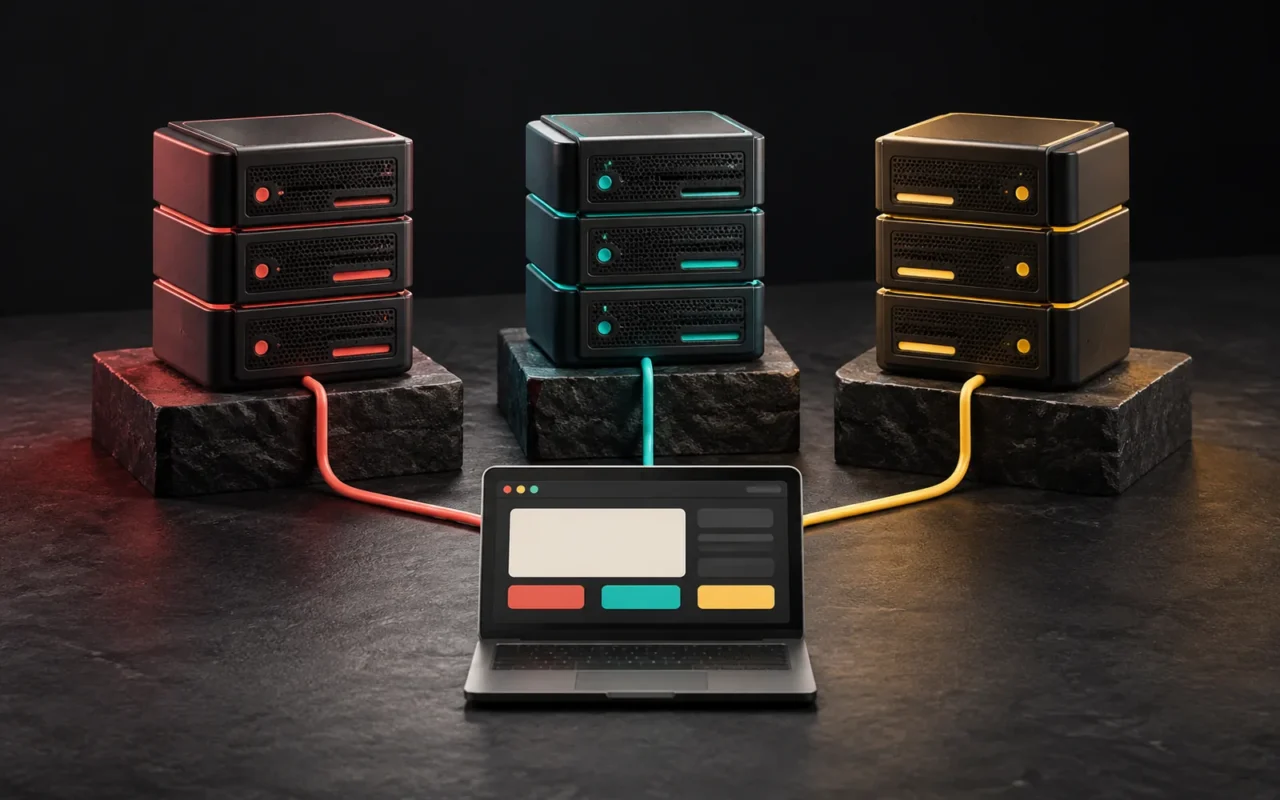
Website backup means regularly keeping a copy of your site's files and database somewhere independent of the main server. The short answer: a good backup routine is built on at least three copies, on two different types of media, with one copy kept in another location (the 3-2-1 rule), and it is verified with regular restore tests. In this post we explain what to back up, how often and where, and in which real-life situations a backup actually helps.
In short
- The 3-2-1 rule: 3 copies of important data, on 2 different types of media, with 1 copy in another location.
- A full backup of a WordPress site has two parts: the database (posts, pages, settings) and the files (themes, plugins, uploaded images, configuration files).
- How often you back up depends on how often the site changes; you should also take a separate backup before every update.
- Relying only on your hosting company's backup means depending on a single point.
- A backup whose restore has never been tested shouldn't be counted as a backup.
Why do you need website backups?
We often only realize the value of a backup when we need it. Typical real-life situations that call for a backup include:
- A failed update: After a plugin or theme update, the site shows a white screen or the design breaks.
- Attacks and malware: The site is compromised and unwanted links or code are injected into pages.
- Human error: A page, product or media folder is deleted by mistake.
- Hosting problems: A server failure, an account suspension or the end of the service.
- Migration: Moving the site to a new server, a new domain name, or from a development environment to production.
In all of these situations the question is the same: "How quickly can we get back to the most recent sound copy, and how recent is it?" A good backup routine answers that question in advance.
What is the 3-2-1 rule?
The 3-2-1 rule, which also appears in the backup guidance of the US Cybersecurity and Infrastructure Security Agency (CISA), offers a simple framework for reducing the risk of data loss:
- 3 copies: Every important file has 3 copies: 1 primary and 2 backups.
- 2 different media: The copies are kept on two different types of media to protect against different threats.
- 1 copy in another location: One of the copies is stored outside the place where the business or the main system is.
For a website, the rule can be applied like this in practice:
| Copy | Where? | What does it protect against? |
|---|---|---|
| 1. Live site | Hosting server | — |
| 2. Server backup | The hosting company's backup system or a backup folder on the server | Accidental deletion, failed updates |
| 3. External backup | A cloud storage service or another medium independent of the server | Server failure, account closure, an attack that affects the server |
A backup on the server is not enough on its own: if the server becomes inaccessible or is compromised, a backup sitting in the same place is at risk too. CISA's ransomware guide also recommends keeping offline, encrypted backups of critical data, because attackers try to delete or encrypt any backups they can reach.

What should you back up in WordPress?
According to WordPress's official documentation, a full backup has two parts, and you need both to bring the site back:
- Database: Posts, pages, comments, users, form entries and settings are stored here. It is usually exported as a
.sqlfile. - Files: The WordPress core, themes, plugins, uploaded images and documents, plus configuration files such as
wp-config.phpand.htaccess.
The documentation recommends backing up the database first and then the files, and keeping the two together as a single set. When restoring, the order is reversed: files first, then the database.
If the site holds customer information, form entries or order data, the backups are also copies of that data. That's why it's important to keep backup files encrypted and in places with restricted access.
How often should you back up?
The WordPress documentation gives a rough guide: once a week for small sites with little content, and every day for busy sites where content is added very often. It also recommends taking a backup before every update.
When deciding the right frequency for your site, ask yourself: "What is the most work I can afford to lose since the last backup?"
- For a corporate brochure site updated a few times a month, a weekly backup is usually enough.
- On an e-commerce site that takes orders every day, even one day of loss means losing orders and customer data; more frequent database backups are needed.
- How many backups you keep also matters. The WordPress documentation recommends keeping the last 3–5 backups in different places. If you notice a problem late (for example, malicious code injected weeks ago), you need to be able to go back to an older, clean backup.
Restore testing: the real test of a backup
Having a backup doesn't mean it works. A corrupted archive, an incomplete database or a large file that hits the server's upload limit only shows up when you try to restore. CISA also recommends regularly testing the availability and integrity of backups in a disaster recovery scenario.
A simple testing routine:
- At regular intervals, restore a backup to an environment separate from the live site (a local computer or a test subdomain).
- Check that pages, images, forms and the admin panel work.
- Note how long the restore took and where you got stuck.
Real-world scenarios: how a backup is used
Scenario 1: The site broke after an update
A backup taken before the update is the fastest fix. You return the site to its pre-update state, investigate the problem in a test environment and then repeat the update in a controlled way. That's why the order "backup first, then update" should never change in your maintenance routine. We covered maintenance in our post Why Is Website Maintenance Necessary?
Scenario 2: The site was compromised
First you need to find the source of the breach (an outdated plugin, a weak password, etc.). Otherwise, the same vulnerability can be exploited again once you restore a clean backup. You need to be sure the backup you go back to is a clean copy from before the attack. This is where keeping several older backups proves its value.
Scenario 3: You can't access your hosting account
In situations such as a server failure, a payment problem or an account suspension, a backup stored outside the server lets you bring the site back up on another hosting account. We covered hosting options in our post What Is Web Hosting?
Scenario 4: Moving the site
Backup and migration are very closely related: a migration is restoring a backup to another environment. One of the tools used for this in WordPress is the All-in-One WP Migration plugin. According to the plugin's WordPress.org page, it exports the database, media files, themes and plugins into a single .wpress file and automatically updates site URLs and file paths during import. In the free version, the import can hit the file upload limit set by the hosting company. You may need to raise that limit or use the plugin's paid extensions.
Our experience
We develop our own site (artsution.com.tr) in a local environment and move it to the live server with All-in-One WP Migration. Since a migration is also a matter of "restoring a backup somewhere else," we keep in mind that the real work is not transferring the file but verifying that the site actually works after the restore.
Our post-migration checklist includes these steps:

- Permalinks: Re-saving the permalink settings in WordPress and checking that inner pages open.
- Licenses: Confirming that domain-bound licenses such as Elementor Pro are active at the new address.
- Address change: Making sure all addresses work with
httpsand the correct domain name, and that no links point to the old address. - Cache: Checking the LiteSpeed Cache settings and purging the cache. We covered caching in our post What Is Website Caching?
- SEO: Checking that Yoast SEO data is reindexed and that the sitemap shows the correct addresses. For a detailed list, see our Technical SEO checklist.
- Forms: Sending a test message from the contact forms and confirming that the email actually arrives.
We follow the same approach on our clients' WordPress sites: we care as much about checking that the site works fully when restored as about taking the backup.
Common mistakes
- Keeping backups only on the same server. If the server goes, the backup goes with it.
- Backing up only the files or only the database. You need both to bring a WordPress site back.
- Overwriting a single backup again and again. If you notice a problem late, all you're left with is a broken copy.
- Never trying a restore. You find out the backup is broken at the worst possible moment.
- Leaving backup files in publicly accessible folders. A backup file sitting in a folder on the server that can be downloaded over the web can expose all of the site's data.
- Not knowing what your hosting company's backup covers. Find out in advance how often it is taken, how many days it is kept and how a restore works.
Frequently asked questions
My hosting company takes backups. Do I need my own as well?
The hosting backup is a valuable layer, but it isn't enough on its own. Because it sits on the same company's infrastructure, you may not be able to reach it when you can't access your account or when the problem is on the company's side. Under the 3-2-1 rule, at least one copy should be somewhere independent of the server.
How often should I back up my WordPress site?
The WordPress documentation recommends weekly backups for small sites and daily backups for frequently updated sites. You should also take a backup before every update. On sites that constantly generate data, such as e-commerce sites, database backups can be taken more often.
Backup plugin, hosting backup or manual backup?
They are not alternatives but complements. The hosting backup gives you a quick way back; an external backup taken with a plugin or automation gives you independence from the server. What matters is that at least one copy is in another location and that the restore is tested.
Why won't my All-in-One WP Migration backup restore?
One common reason is the file upload limit set by the hosting company. According to the plugin's WordPress.org page, this limit is set by the hosting company, not by the plugin. You may need to raise the limit or use the plugin's paid extensions.
Conclusion
Website backup is not a one-time setting but a routine: 3 copies, 2 types of media, 1 external location; database and files taken together; an extra backup before every update; and regular restore tests. Once this routine is in place, a failed update or a server problem can be solved before it turns into a crisis.
If you'd like to set up a backup and maintenance routine for your WordPress site together, take a look at our WordPress development and web design services, or contact us.
Sources4
- CISA (US-CERT), "Data Backup Options" (the 3-2-1 rule) cisa.gov
- CISA, "#StopRansomware Guide" cisa.gov
- WordPress Developer Resources, "WordPress Backups" developer.wordpress.org
- WordPress.org Plugin Directory, "All-in-One WP Migration and Backup" wordpress.org